Mastering testing website in different browsers: A Practical Guide
Learn how to master testing website in different browsers with practical strategies, automation tips, and real-world debugging insights.
Master testing a website on different browsers with a modern workflow: plan tests, configure environments, and automate checks for consistent experiences.
Automate and scale manual testing with AI ->
Testing a website on different browsers is all about making sure your site works and looks the way it’s supposed to on browsers like Chrome, Safari, and Firefox. The whole point is to give every visitor a solid, consistent experience, so you’re not losing sales because of a broken layout or a button that doesn’t click.
This isn’t just a box to check on a technical to-do list; it’s a core part of your business strategy.
We’ve all seen it happen. The website looks absolutely perfect in Chrome, but open it up in Safari, and it’s a total mess. This isn’t just some minor tech hiccup—it’s a direct hit to your revenue and your reputation.
When a potential customer hits your site and finds a broken button or a layout that looks like a Picasso painting, their trust in your brand evaporates on the spot. They’re not going to stick around to figure out why it’s broken; they’re just going to leave.
This isn’t just a hunch. A 2022 Adobe study found that a staggering 88% of users will ditch a website after just one bad experience. More often than not, those bad experiences are caused by these exact kinds of cross-browser glitches. Simply checking your site on your own machine isn’t going to cut it anymore.
It’s not just about the immediate loss from an abandoned cart. When your site performs differently from one browser to the next, it sends a message of unprofessionalism and slowly erodes long-term customer loyalty.
Every broken element, every misaligned image, chips away at a user’s confidence. It makes them think twice about coming back or telling a friend about you. The ripple effect of this poor quality doesn’t just stop with customers, either; it can drag down team morale, too. You can learn more about the impact of poor quality on customer trust and team morale in our deep-dive guide on the topic.
A seamless experience is no longer a “nice-to-have”—it’s the baseline expectation. If your site doesn’t work flawlessly for a user on their preferred browser, you’ve essentially closed your digital door to them.
At the end of the day, having a modern approach to testing a website on different browsers is non-negotiable. It’s the only reliable way to make sure every single visitor gets the smooth experience they expect, which in turn protects your conversions and builds a stronger brand.
Trying to test every single browser on every possible device is a recipe for disaster. It’s a surefire way to burn through your budget, exhaust your team, and grind your release schedule to a halt. A much more effective approach is to let your users’ data guide your efforts.
Before you even think about running a test, you need a solid plan. That plan starts with a deep dive into your own website analytics. Tools like Google Analytics, Matomo, or Plausible are your best friends here. They’ll tell you exactly which browsers, operating systems, and devices your actual visitors are using. This isn’t just interesting data—it’s the bedrock of your entire testing strategy.
Your first goal is to build a browser matrix. Think of it as your prioritized checklist of browser-and-device combinations, tailored specifically to your audience. This isn’t a generic document you download from the internet; it’s a living blueprint based on your traffic. A small startup, for instance, might laser-focus on the top two browsers, while a large enterprise will naturally need to cast a wider net.
To get some context, it helps to know the general market landscape. In 2023, Google Chrome dominated the desktop browser market with a 66% share. Microsoft Edge followed at 14%, with Safari at 10% and Firefox holding around 6%. So, if you’re just starting out, targeting Chrome and Safari makes sense. But as your site grows, ignoring millions of users on Edge and Firefox becomes a significant business risk.
A tiny, seemingly insignificant browser glitch can have a huge impact. It can completely derail a customer’s journey and lead directly to a lost sale.
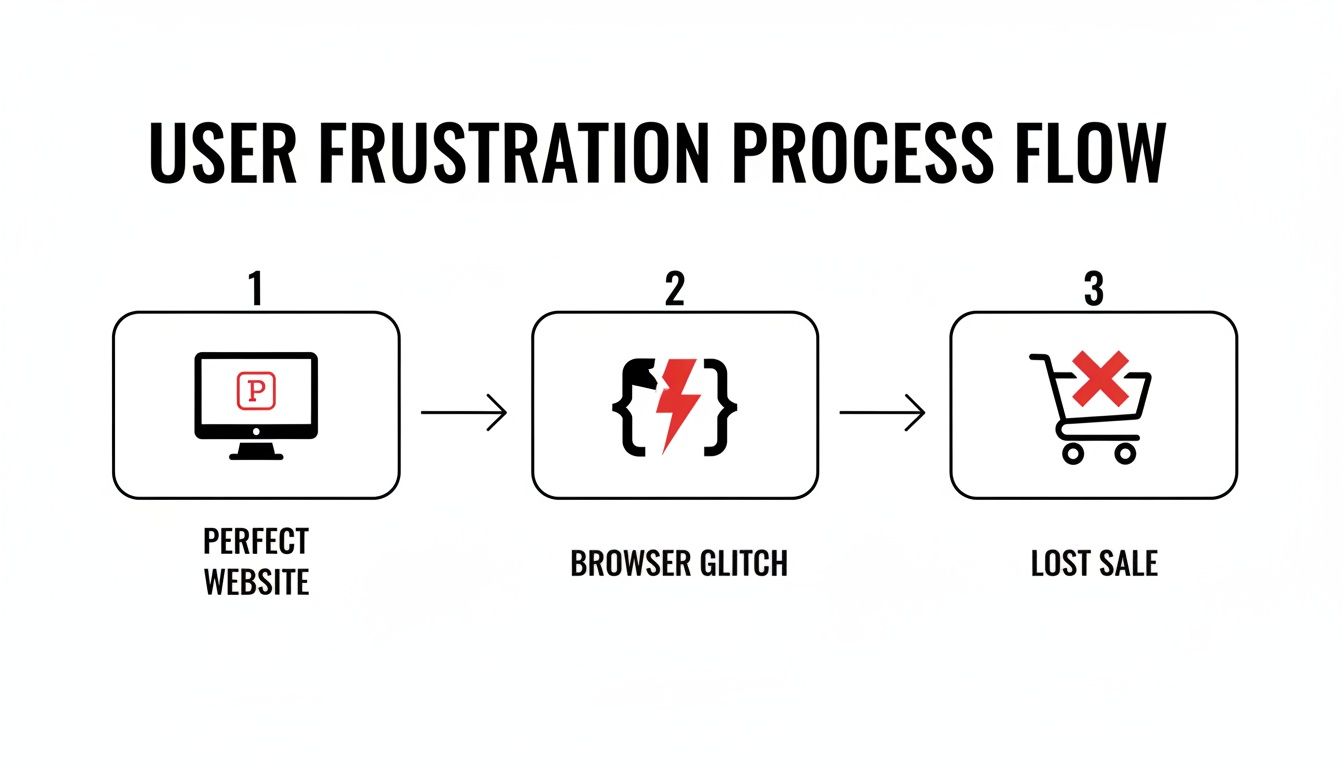
From a developer’s perspective, it might just be a minor CSS bug. But for a potential customer, it’s a dead end.
With your user analytics in hand, it’s time to build out that matrix. The most practical way to do this is to categorize everything into tiers. This simple system brings immediate clarity to your testing workflow.
Building a browser matrix transforms your QA process from a guessing game into a targeted, efficient operation. It ensures you’re investing your limited time and budget where it will have the greatest impact on user experience and your bottom line.
To give you a clearer picture of how this works, here’s a practical guide for prioritizing browser testing based on website traffic.
This table provides a practical guide for prioritizing browser testing based on website traffic, helping teams focus their QA efforts effectively.
| Monthly Users | Tier 1 Browsers (Must Test) | Tier 2 Browsers (Should Test) | Tier 3 Browsers (Optional) |
|---|---|---|---|
| 0 - 10k | Latest Chrome, Latest Safari (Desktop & Mobile) | Latest Firefox, Latest Edge | One version back of Chrome/Safari |
| 10k - 100k | Latest Chrome/Safari/Edge (Desktop & Mobile) | Latest Firefox, One version back of Chrome | Two versions back of Chrome/Safari, Brave |
| 100k - 1M | Latest Chrome/Safari/Edge/Firefox (Desktop & Mobile) | One version back of Chrome/Safari/Edge | Brave, Samsung Internet, Two versions back |
| 1M+ | Latest and one version back of Chrome/Safari/Edge/Firefox | Two versions back of major browsers, Brave | Other niche browsers based on analytics |
This kind of strategic prioritization is what separates professional QA from frantic, last-minute bug hunting.
Of course, cross-browser testing is just one piece of a much larger puzzle. To truly appreciate why this structured, data-driven approach is so effective, it helps to understand the fundamentals of Quality Assurance in software development. This foundational knowledge gives you the context to build robust, reliable systems.
Once you’ve got a solid testing strategy, it’s time to figure out where you’ll actually do the work. This decision is a big one, often coming down to your team’s size, budget, and how deep you need to go with your testing. The environment you choose will make or break how efficiently you can squash cross-browser bugs.
You really have two main roads to go down: setting everything up yourself locally or using a cloud-based testing platform. Each has its own set of headaches and advantages, particularly when it comes to setup, maintenance, and the ability to grow.
If you’re a solo developer or part of a small team just dipping your toes in, a local setup might seem like the simplest path. This usually means firing up virtual machines (VMs) on your computer or relying on the device emulation built into browser developer tools. You get total, hands-on control over every little detail of the configuration.
But that control comes with a serious cost. Manually maintaining a library of VMs—each with its own OS and specific browser versions—is a colossal time drain. You’ll find yourself wrestling with constant updates, security patches, and configuration issues, which is time you should be spending on testing.
The harsh reality of local testing is that you often spend more time acting as an IT admin for your testing environments than you do actually finding bugs. It’s a decent place to start, but it just doesn’t scale.
This is where cloud-based testing platforms completely change the game.
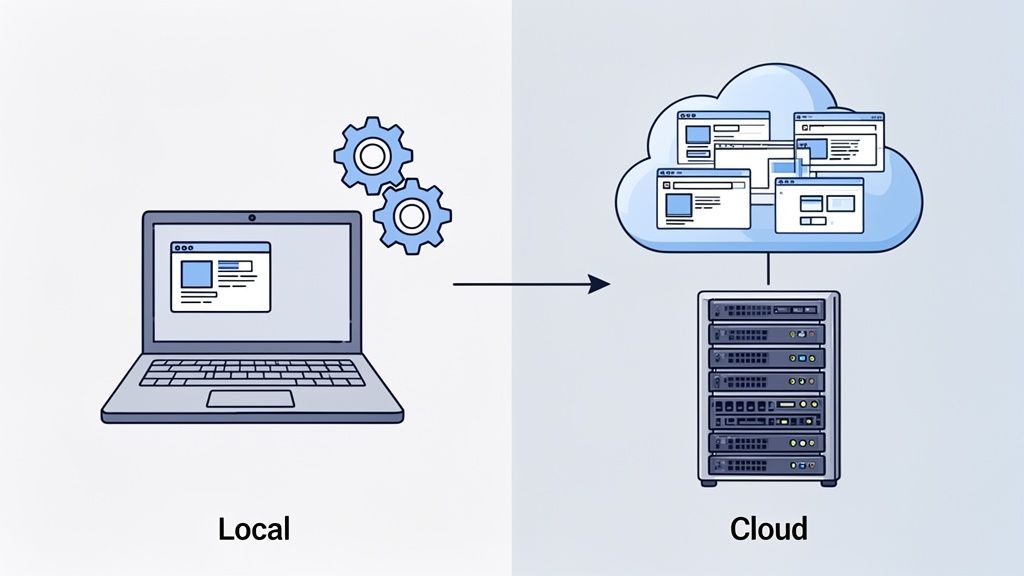
Services like BrowserStack and Sauce Labs give you instant access to a massive grid of thousands of real browsers, devices, and operating systems. No local setup required. You get a perfectly clean, reliable environment on demand for every single test you run.
The best part? They handle all the mind-numbing maintenance for you. Need to check something on Safari 15 running on an old macOS build? It’s literally just a click away. This approach frees your team from the tedious setup and lets you focus 100% on what matters: writing and running great tests. The subscription might look like a bigger upfront cost, but the hours saved on environment management pay for themselves many times over.
Here’s a quick breakdown of how they stack up:
| Feature | Local Environment | Cloud-Based Platform |
|---|---|---|
| Setup Time | High (days or even weeks) | Low (minutes) |
| Maintenance | Constant manual updates | Fully managed by the provider |
| Scalability | Limited by your hardware | Virtually unlimited |
| Coverage | A handful of configurations | Thousands of combinations |
| Cost | Low initial cost, high hidden labor costs | Predictable subscription fee |
For any team that’s serious about shipping a high-quality product, cloud platforms are a no-brainer. They provide the scale, speed, and reliability you need to build testing right into your development process. If you’re curious about the nuts and bolts, our comprehensive guide to using BrowserStack for effective testing breaks it down even further. At the end of the day, you want to remove friction from testing, and cloud solutions do that better than anything else.
Anyone who’s spent time in quality assurance knows the pain of traditional test scripts. They’ve been a staple for years, but let’s be honest: they are slow to write and incredibly fragile. A developer renames a button’s ID, and poof—your entire test suite shatters. This sends engineers down a rabbit hole of tedious repairs instead of actually improving quality.
This constant write-fix-repeat cycle is a huge drag on modern development. But there’s a much more resilient way forward. The move to AI-driven test automation isn’t just a buzzword; it’s a practical solution to the speed demanded by today’s development cycles. Instead of hand-coding every click and keystroke, you can just describe what you want to test in plain English. The AI takes care of the rest.
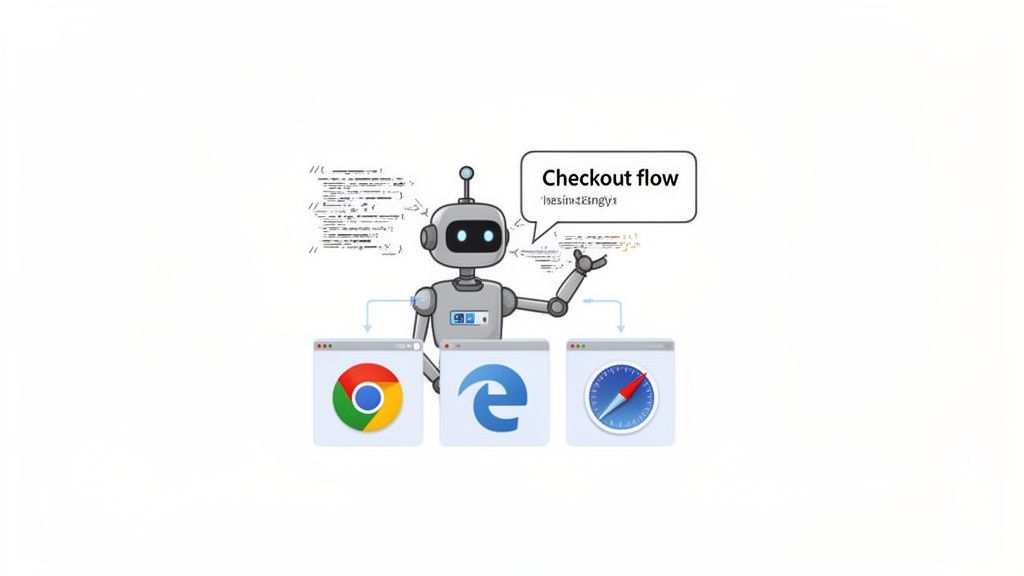
This approach makes automation something everyone on the team can contribute to, not just a few specialized QA engineers. It transforms high-level goals into robust tests in minutes, not days, speeding up the whole process.
Let’s look at a real-world example: testing a standard e-commerce checkout. Using a framework like Selenium, you have to be painstakingly specific, telling it exactly how to find every single element using CSS selectors or XPath—which are notoriously unstable.
Your script might look something like this:
findElement(By.id("product-add-to-cart-button")).click()findElement(By.cssSelector(".cart-icon")).click()findElement(By.name("checkout-button")).click()findElement(By.id("user-email")).sendKeys("test@example.com")This works perfectly… for now. The moment a developer changes the email input’s id from user-email to customer-email for better clarity, the test breaks. Now imagine this problem scaled across hundreds of tests. You can see how maintenance becomes a full-time job.
Now, let’s contrast that with an AI-powered tool. Instead of writing rigid, selector-based code, you just state your goal in a natural, human-readable way.
A simple prompt is all it takes:
“Go to the product page, add the first item to the cart, proceed to checkout, enter ‘test@example.com’ as the email, and verify that the order summary page is displayed.”
The AI interprets this intent and generates a comprehensive test that runs the flow across all your target browsers. The brilliant part is that it’s smart enough to find the “add to cart” button and the email field, even if their underlying code attributes change. This makes your tests far more resilient to the small UI tweaks that happen every single day. As you make this transition, exploring solutions like AI-Powered Web Vision Tools can give your testing an even bigger boost.
AI-powered testing isn’t just about making sure buttons work. It’s fantastic at catching the subtle visual glitches that drive us crazy with cross-browser compatibility. Traditional scripts almost always miss these kinds of problems:
AI tools can handle visual regression testing automatically. They compare screenshots from each browser against an approved baseline and flag even the smallest pixel-level differences. This guarantees your site not only functions correctly but also looks perfect for every single user. This dual-threat of functional and visual validation is crucial when testing a website on different browsers.
By shifting from brittle, hand-coded scripts to intelligent, intent-based automation, you’re not just saving time. You’re building a more robust, scalable, and efficient QA process that actually keeps up with your development team.
This strategic shift turns quality assurance from a bottleneck into a shared responsibility. For anyone looking to explore this further, our guide on the top AI tools for automated testing is a great place to see what’s out there.
Let’s be real: cross-browser testing is only truly effective when it’s not an afterthought. You can’t just bolt it on at the end of a sprint and hope for the best. The real magic happens when you weave these checks directly into your everyday development workflow through your CI/CD pipeline.
By doing this, you’re not just finding bugs; you’re preventing them. Instead of a frantic scramble to fix a layout issue on Safari that was merged a week ago, you catch it the moment a pull request is created. This is what people mean by “shifting left”—it’s about building quality in from the very beginning, not inspecting for it later.
The whole point of a CI/CD pipeline is automation, and your browser tests should be no exception. You want your test suite to run like clockwork in response to key development triggers. This eliminates the “I forgot to test it” excuse and ensures nothing untested ever makes it into your main branch.
There are a few smart ways to set up these triggers:
main branch—if the code introduces a browser bug, it doesn’t get in.staging or release branches. This serves as a final quality check before your code moves one step closer to your users.When you automate test execution, you create a tight feedback loop. Developers find out immediately if their changes broke something, letting them fix it while the code is still fresh in their minds. No more context switching or head-scratching over old code.
To make this happen, you’ll need to roll up your sleeves and tweak your pipeline’s build script. Whether you’re using GitHub Actions, GitLab CI, or Jenkins, the concept is the same: you’re adding a new step to your configuration file.
This new step will run a command that fires up your test suite. It could be a script that launches Playwright, Cypress, or a specialized tool like TestDriver, telling it which browsers to run against on your cloud grid. You’ll need to pass in any necessary API keys or credentials as secure environment variables.
The most critical piece? Setting up the failure conditions. If even one crucial test fails on any browser, the entire build must fail. This is non-negotiable. A failed build should stop the merge or deployment dead in its tracks and fire off an immediate notification to the team via Slack or email. This immediate, unavoidable feedback is what makes testing a website on different browsers a core part of your team’s culture.
So, you’ve run your automated test suite. Seeing a wall of green checkmarks is a great feeling, but what happens when you get that dreaded red ‘X’? This is where the real work of cross-browser testing begins: digging into the results to figure out what broke and, more importantly, why.
The first thing to do is determine if you’re looking at a genuine bug or just a flaky test. We’ve all been there—a test that fails on Tuesday but passes on Wednesday with zero code changes. These are often caused by tricky timing issues, like a script trying to click an element before an animation has finished. Thankfully, modern testing platforms give you the tools to investigate, providing detailed logs, console outputs, and even video recordings of each run. You can literally watch the test unfold as the browser saw it.
Once you’ve confirmed you have a real, reproducible bug on your hands, it’s time to play detective. Most cross-browser issues tend to fall into a few common buckets. Knowing where to look first can save you from hours of banging your head against the wall. The problem is rarely obvious; it’s usually a subtle difference in how two browsers decided to interpret your code.
This is the reality of a fragmented market. In 2023-2024, the desktop browser world was dominated by Chrome at 65%, but Edge (13%), Safari (10%), and Firefox (6%) still represent millions of users. Each rendering engine has its own history and quirks. For example, Safari didn’t support the gap property in Flexbox until 2021, a full year after Chrome. For a deeper dive, you can explore the full details on browser market share and its impact.
When a bug pops up, these are usually the first places I look:
To avoid just randomly tweaking code and hoping for the best, it helps to have a system. A methodical approach is the fastest way to isolate the issue.
The goal isn’t just to patch the bug and move on. It’s to understand why it happened in the first place. That knowledge helps your whole team write more resilient, browser-agnostic code, making these kinds of bugs less common over time.
Following a disciplined process like this turns debugging from a frustrating art form into a predictable science. It’s how you ensure your website delivers a solid, consistent experience for every single user, no matter what browser they’re using.
Ready to stop writing brittle test scripts and start automating with AI? TestDriver helps you generate robust end-to-end tests from simple prompts, so you can catch bugs faster and release with confidence. Get started with TestDriver today.
Learn how to master testing website in different browsers with practical strategies, automation tips, and real-world debugging insights.
Discover how to approach testing a website in different browsers. Learn to build a testing matrix, automate workflows, and ensure a flawless user experience.
Master the art of testing websites on different browsers. This guide covers how to build a testing matrix, write robust tests, and fix bugs efficiently.
Discover how automated testing DevOps transforms your CI/CD pipeline. This guide covers practical strategies, tools, and AI's role in accelerating releases.
TestDriver runs every pull request in a real desktop sandbox, finds bugs, and builds regression tests - right from your repo.